


WEB AO Entry
Key points for WEB AO entry

24 hours a day
AO entry possible
You can apply for the AO (Admissions Office) program anytime, as long as you have an internet connection.

Easy to use with your smartphone
AO entry is possible
You can use your smartphone without having to write by hand.
You can easily apply through the AO (Admissions Office) application process.
AO Entry Process
- STEP 1Preparation
- STEP 2Register your My Page
- STEP 3: Register various information
- STEP 4 My Page Password Setting
- STEP 5 WEB AO Entry
- STEP 6 Check the results of your AO entry
- STEP 7 Registration of application after AO entry application is approved
- STEP 8Payment of the selection fee
- STEP 9: Sending documents by post
-
STEP 10 Entrance Exam
*Only for those applying for the scholarship program - STEP 11 Check the results
STEP 1Preparation

Check your internet connection
Please prepare a computer, smartphone, or tablet connected to the Internet.

Prepare an available email address
This is required to register your My Page.
We will also send important notifications to the address you registered.
STEP 2Register your My Page
-
Step 1
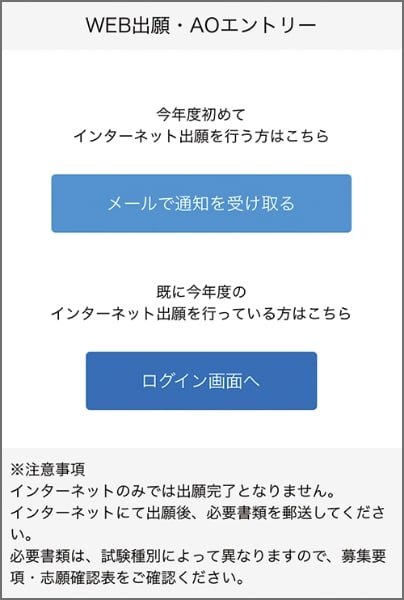
Access the application page via the web application/web AO entry page and select the "Receive notification by email" button.
-
Step 2
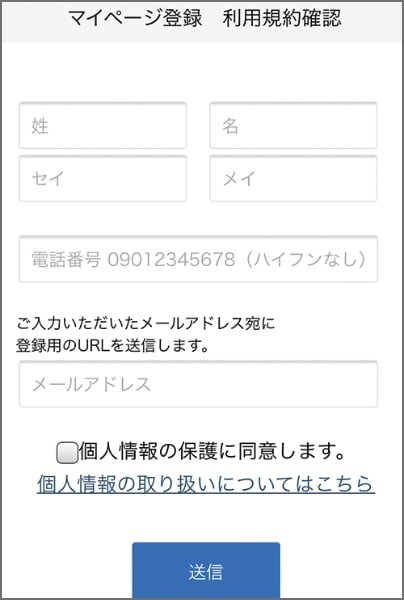
Please enter your name, phone number, and email address.
-
Step 3
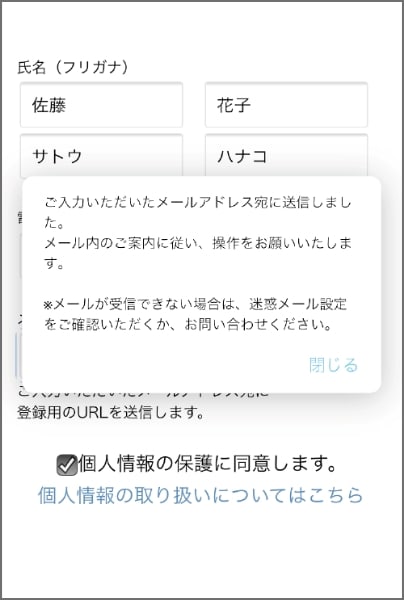
An email will be sent to the email address you entered.
-
Step 4
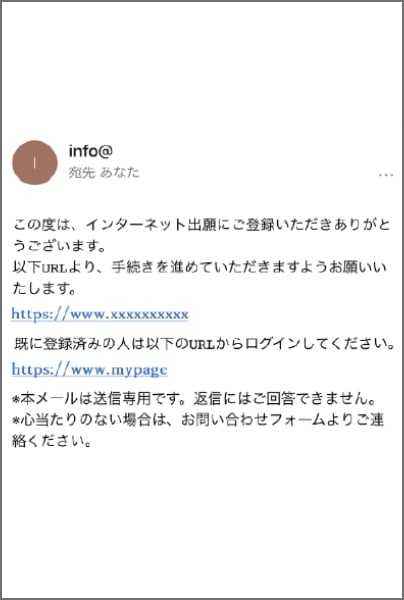
Please click on the URL in the "Temporary Registration Completion Notification" email that will be sent to the email address you entered to complete your registration.
STEP 3: Register various information
-
Step 1
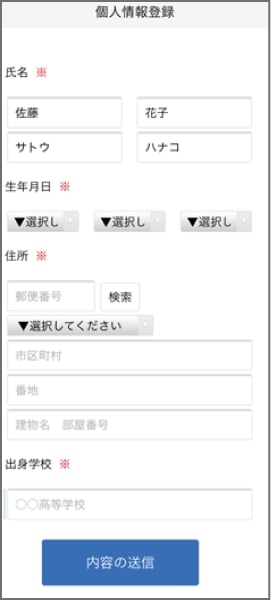
Enter personal details
Please enter your address, date of birth, etc. -
Step 2

Please complete the required fields by following the on-screen instructions.
A notification will be sent to the email address you registered, so please follow the instructions.
STEP 4 My Page Password Setting
-
Step 1
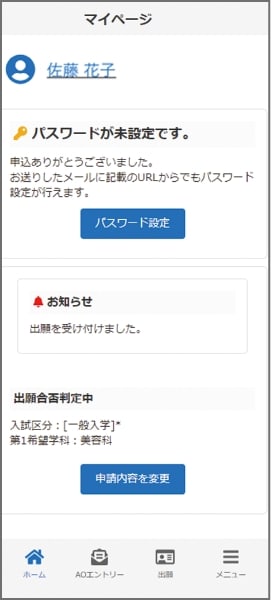
Select the "Set Password" button.
-
Step 2
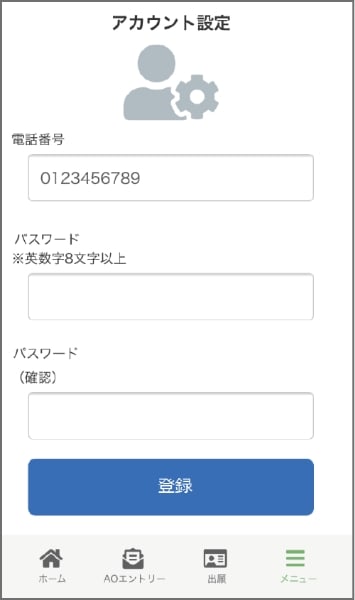
Please set a password that is 8 or more alphanumeric characters long.
STEP 5 WEB AO Entry
Selection will be made through an interview.
STEP 6 Check the results of your AO entry
The results of your WEB AO entry will be posted on your My Page in the list of registered exam dates.
The above is the process for submitting your application via the web-based AO application system.
Below is the procedure for applying online after your WEB AO Entry application has been approved.
A selection fee is required when applying online, so please check our school's recruitment guidelines for details.
STEP 7: Registration of application after WEB AO entry application is approved
-
Step 1
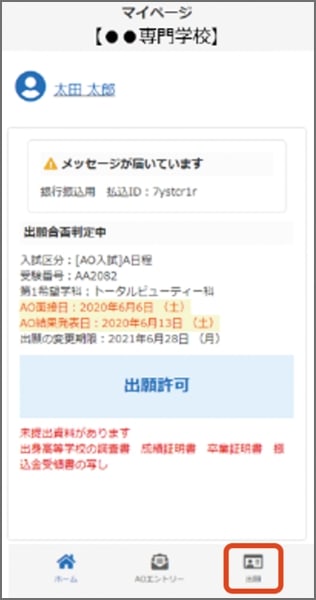
Once permission to apply is displayed, please apply by clicking "Apply."
-
Step 2
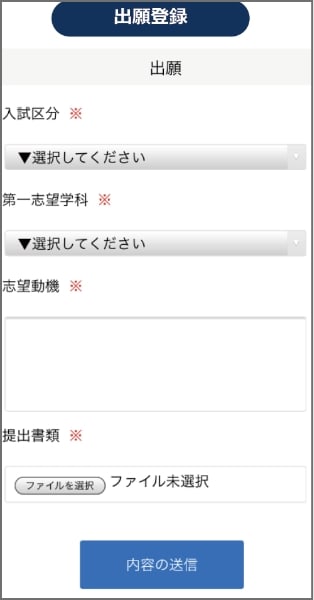
Follow the instructions on the screen to complete the input items. You will need to attach documents to submit, so please prepare them.
A notification will be sent to the email address you registered, so please follow the instructions.
STEP 8Payment of the selection fee
If you wish to register your application, please pay by one of the following methods:

Bank transfer
Please make the payment at any financial institution counter nationwide.

Bank transfers via ATMs at convenience stores, etc.
Please transfer the amount via ATMs located nationwide.
STEP 9: Sending documents by post
Please place the documents listed on your My Page in an envelope and mail them to the address below by registered mail or express mail from your post office during the application period. (Must arrive within the application period.)
Tokyo Sweets & Cafe College
〒113-0033
3-43-9 Hongo, Bunkyo-ku, Tokyo
STEP 10 Exam *Only for those applying for the scholarship program
You will be sent an admission ticket by post, so please be sure to bring it with you on the day of the exam.

STEP 11 Check the results
You will be notified by mail regarding the results.
Successful applicants will be sent a letter of acceptance and the necessary documents for enrollment.